
A wide holiday scene for calls, covers and card layouts
 A wide holiday scene for calls, covers and card layouts
AI Christmas Background From a Photo or a Few Words
This AI Christmas background tool makes a wide 16:9 holiday scene. Start from a photo you like, or skip the upload and describe the room you want in a sentence. The decorations gather at the edges, so the middle stays clear.
1Add a photo (optional)
Upload a photo, or skip it and describe the scene in step 4.
You can also drop files on the boxes or paste an image with Ctrl+V (⌘V).
2Pick your Christmas effect
3Choose quality & format
Write what the background should look like, or upload a photo above.
This Christmas background: 10 credits. A one-time Stocking pack ($4.99) covers it, and pack credits never expire.
When you start, you confirm you are allowed to use every photo you upload. Terms of Service
One-time credit packs · Failed jobs refund their credits · Sign in to start
Updated Nov 13, 2026
In brief
Upload a photo or type a short description, pick one of four looks, and the AI returns a wide 16:9 holiday scene with a calm center. Each image costs 5 credits (1K) or 10 credits (2K), shown before you start, and failed jobs return their credits.
Recent changes
- — 16:9 is selected by default for screens, covers and wide cards.
- — A photo is optional: a written description works on its own.
- — Four looks: Classic Red & Gold, Cozy Christmas, Snowy Wonderland and Santa’s Workshop.
- — Tips for keeping the center quiet.
- — Cross-links to the other holiday photo tools.
Illustrative examples
From a plain room to a Christmas photo background
These illustrative pairs start simple: a daylit living room, or just a line such as “a log cabin with a tall tree and snow at the window”. Beside it sits a wide holiday version with a fireplace and stockings, a frosted window in blue evening light, or a workshop full of toys. What you make will be a new image.
Notice the center of each scene. It is kept calmer than the edges, because that is where a face sits on a video call or where a name goes on a banner. The decorations frame the space instead of filling it.
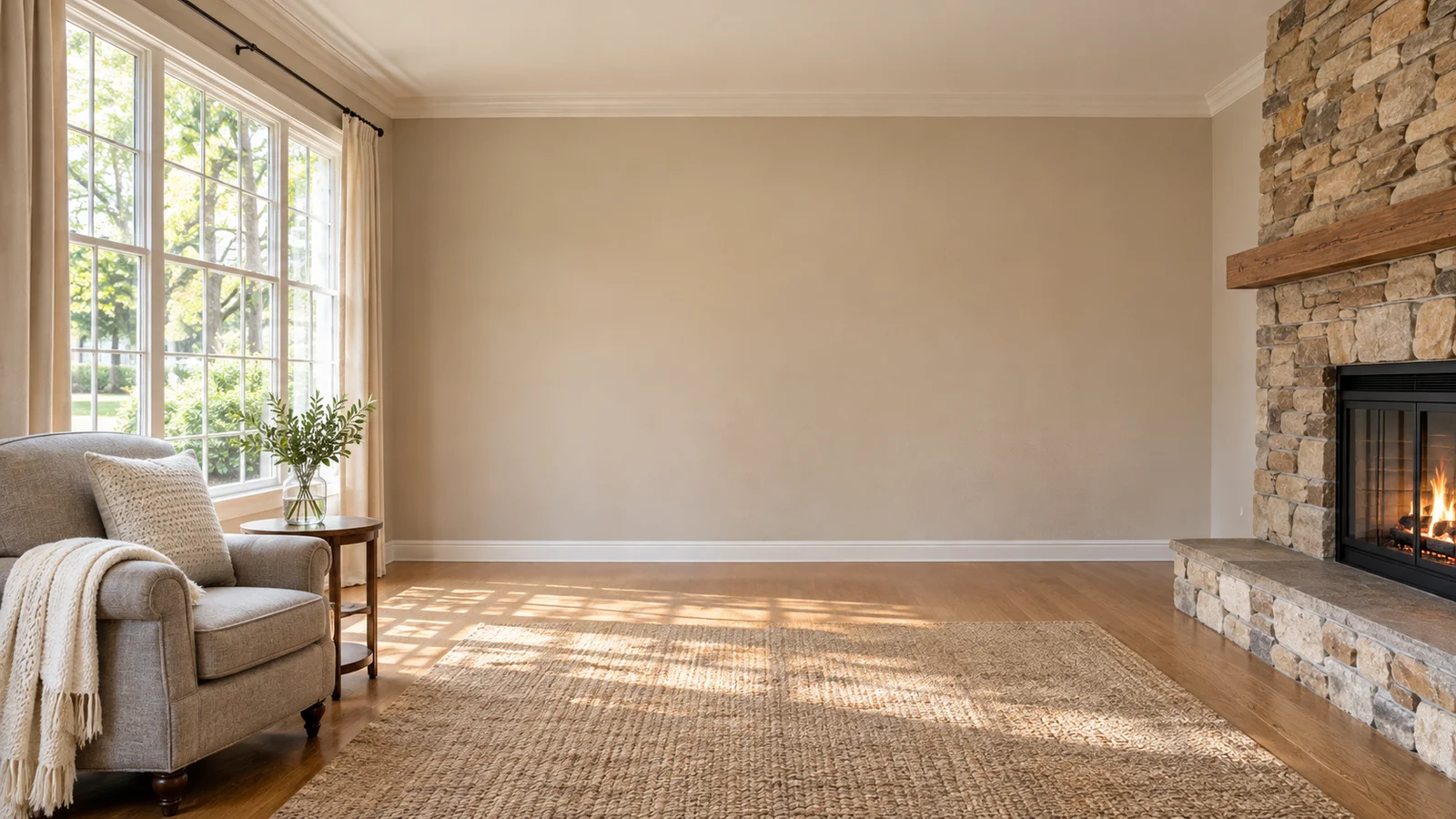
Before 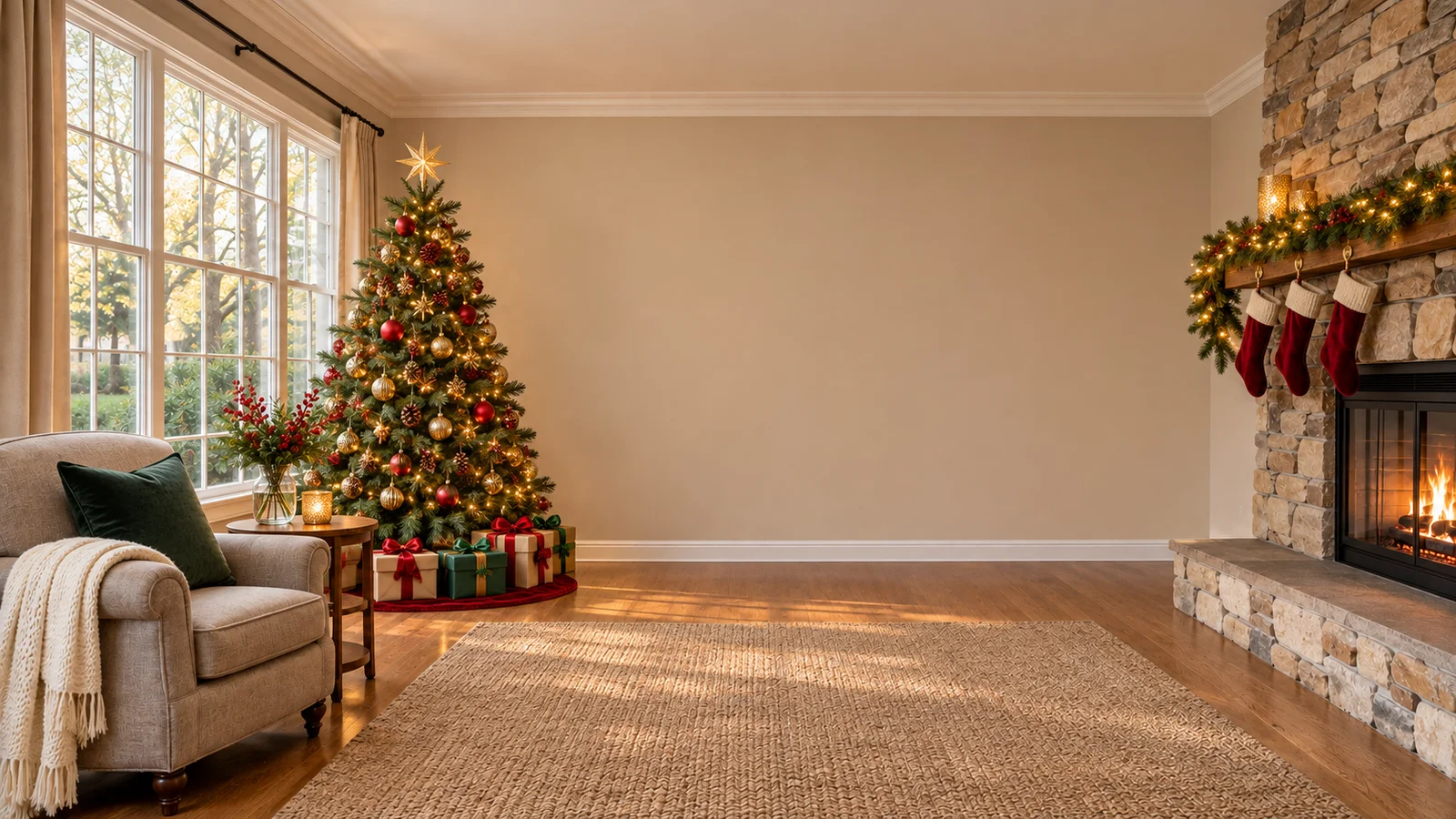
Holiday look Starting photo 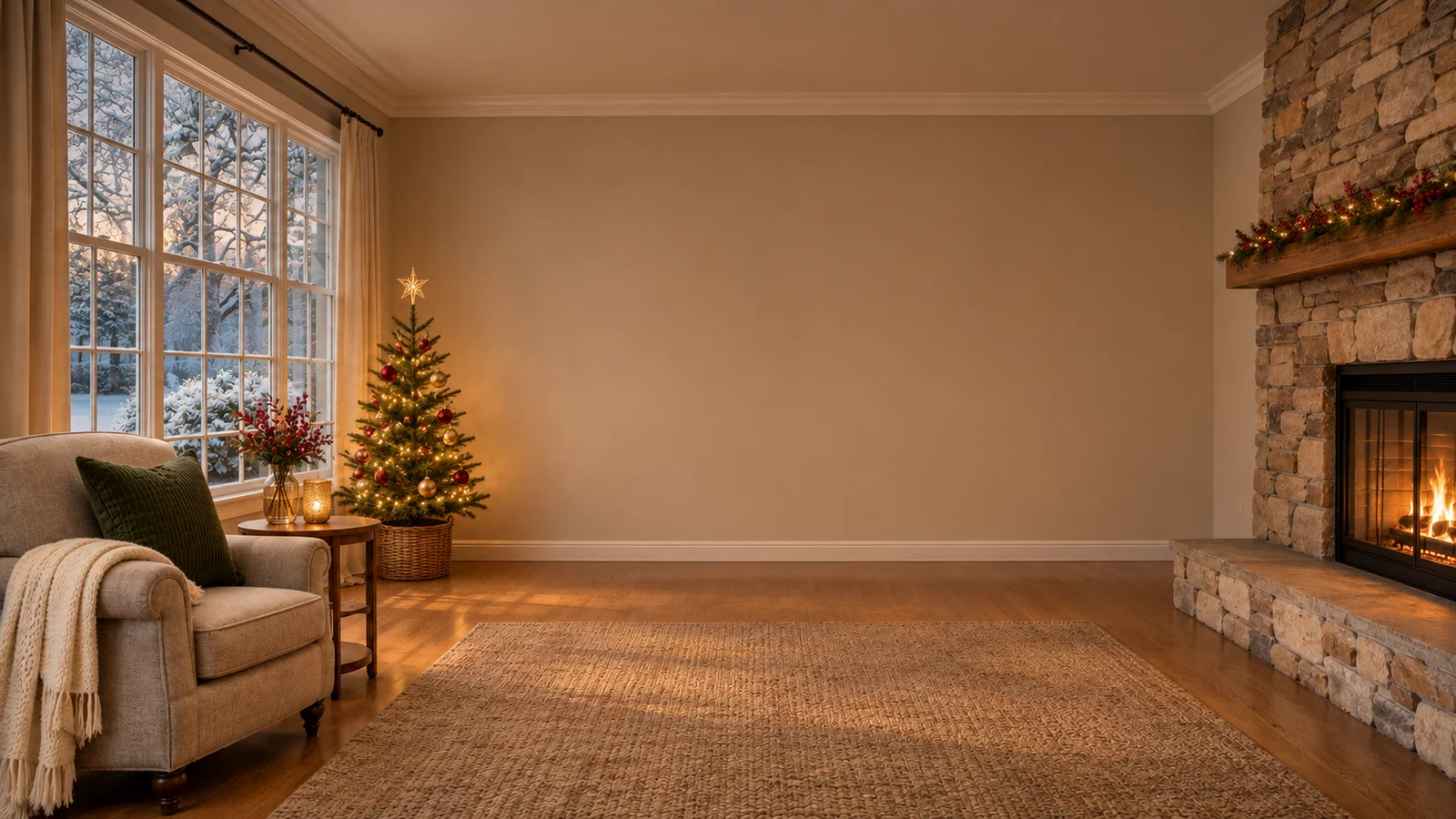
A second look
About this tool
What is an AI Christmas background?
It is a wide festive scene meant to sit behind something else: you on a call, a line of text, or other photos. You give the AI a picture or a short description, choose a look, and get a 16:9 setting with lights, garlands, snow or a fireside.
December fills up with screens: the last team meeting of the year, a quiz night with cousins, a video chat with grandparents. A festive virtual background warms up each one and hides whatever is piled in the corner. The same wide image can also head a newsletter, top a profile page, or act as the bottom layer of a card where you add your own words.
Starting from a photo keeps it personal, for example your own front room dressed for the season. Starting from words lets you invent a space, such as a mountain cabin, a ballroom with a towering tree or a quiet village lane under snow.
Want something for your phone screen? Try the AI Christmas Wallpaper
How to
How to make an AI Christmas background
Four steps take you from an idea or a photo to a finished wide scene.
- 1
Add a photo or describe a scene
Upload a clear photo if you want a real room, person or pet involved. Or leave the upload empty and write one sentence, such as “a cabin with a stone fireplace and a decorated tree”.
- 2
Choose a look
Cozy Christmas gives warm firelight, Snowy Wonderland a cool, bright winter feel, Classic Red & Gold a traditional look, and Santa’s Workshop a playful room for family events.
- 3
Keep 16:9 or change the shape
Wide 16:9 is preselected, which suits most video calls and banners. Switch to tall or square if you need one. Choose 2K for big monitors or print, 1K for a quick call backdrop.
- 4
Ask for a calm middle, then create
Add a note such as “keep the middle plain” or “garland along the top”, create the scene, check there is space for you or your text, and download it.
Other holiday tools
Each one starts from your own photo, whether it is a certificate, an avatar, a pet portrait or a photo with Santa.
 Christmas PFP makerA square holiday avatar to match your new call background.Open
 Pet Christmas photosA dog or cat in a festive scene, alone or with a second pet.Open
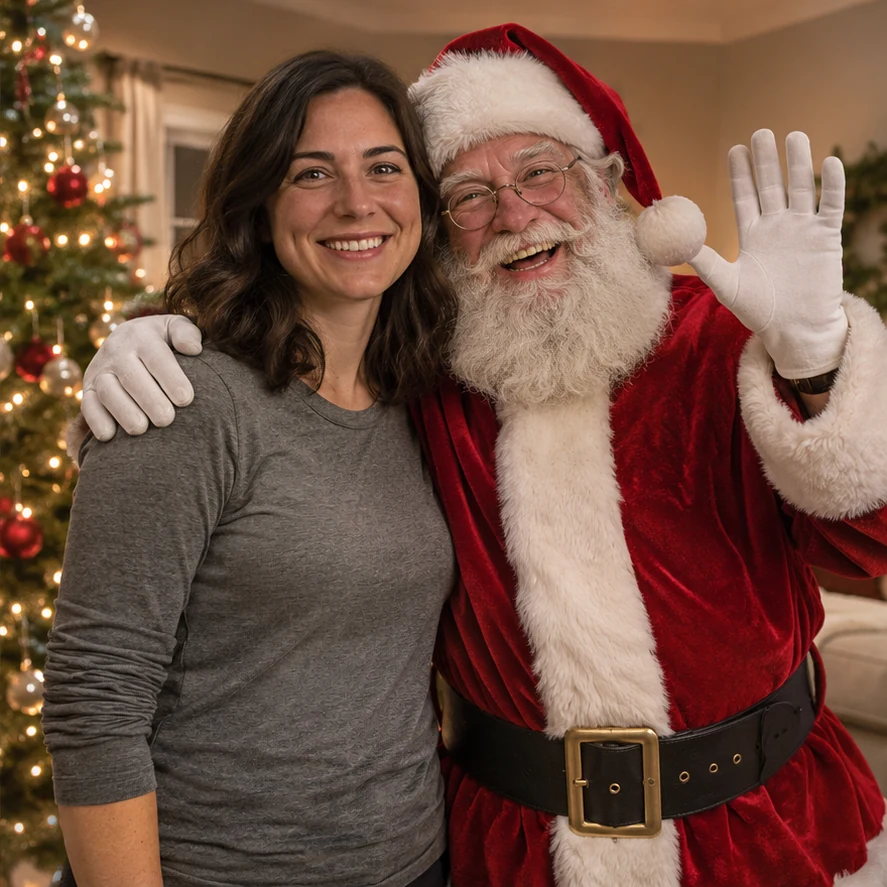 Photo with SantaSanta posing beside the people or pets in your own photo.Open
Santa Nice List — A named certificate around a child’s portrait. Open
AI Christmas Photoshoot — Holiday portraits of the family made from everyday photos. Open
AI Christmas Card Generator — A wide picture with room for a greeting, for the front of a card. Open
AI Santa Photo — The person in your photo dressed as Santa. Open
AI Christmas Wallpaper — Christmas decorations added to your own photo for a phone screen. Open
Reasons
Why make a Christmas photo background with AI
Wide by default
The 16:9 shape is already selected, so the scene fits screens and banners without awkward cropping.
Personal or invented
Use a photo of your own room or family for something personal, or describe an imaginary place in your own words.
Space left in the middle
Lights, garlands and snow frame the edges while the center stays calmer, so a face or a greeting is easy to see.
One image, several uses
Use it behind a video call, at the top of a newsletter or under a card layout. Each scene is 5 credits (1K) or 10 credits (2K), and pack credits never expire.
Questions
AI Christmas background questions
It starts at 16:9, the wide shape of laptop screens and most banners. You can switch to tall or square in the format step.
Download the image, open the background or effects settings in your video app, and upload it as a custom background. Check the preview before the call starts.
Yes. This is the one photo tool where the upload is optional. Describe the scene, for example “a snowy street at dusk with glowing shop windows”, and choose a look. One clear idea works better than a long list.
Yes. Place the image as the bottom layer in your card editor or print template, then put photos and your greeting on top. Pick 2K if you plan to print.
The looks push decorations toward the edges. For more room, type “keep the middle plain” in the details box, then preview it inside your video app before the call.
Each background is 5 credits (1K) or 10 credits (2K). A one-time pack needs no subscription, its credits never expire, and downloads carry no watermark.
Give your next call a festive backdrop
Bring a photo, or just one line of text, pick a look and download a wide holiday scene.