
Christmas Pet Portraits for One Pet or Two: A Guide
How to get a holiday portrait of your dog or cat, alone or with a second pet: choosing photos, picking a look, and checking that each animal still looks like itself.
Ready to start? Go to the pet Christmas photo maker for six looks and two-pet portraits.
Updated Nov 13, 2026
In brief
A pet portrait takes four moves in the studio: upload a picture of your pet (one picture per animal for a pair), select Christmas pets, choose a look and shape, and add an optional name or detail. Use One photo for a single animal. For a pair, switch to Two pets and fill both boxes, one animal each; you can switch back without leaving the effect. Images cost 5 credits (1K) or 10 credits (2K).
Recent changes
- — Guide published.
- — Added an illustrative example and a picture for each step.
- — Explained image sizes and credit costs.
A holiday pet portrait swaps the living-room carpet for a tree, a fireplace or a snowy path, and puts your animal in a Santa coat, an elf outfit or plaid pajamas without any dressing up. With two-pet mode, animals photographed on different days can share one picture.
This guide follows the Christmas PFP studiostep by step, then covers cost and common photo problems. The step pictures follow the current studio layout; the example near the end shows this effect.
Before you start: a sharp picture of each pet you want in the portrait, any phone or computer, and the right to use those pictures.
Step 1: Open the studio and upload your pet
Open the studio on the homepage, choose Christmas pets and tap the upload box to pick a clear picture of your pet. For a pair, add one photo per animal. You can also send photos from your phone, drag files in on a computer or paste with the shortcut shown.
Use One photo mode for a single pet. For a pair, switch to Two pets and fill both boxes, one animal in each. Switching back to one photo keeps you in the same effect.
Each photo shows up in its box after upload; remove one to swap it. Check the full-size picture, since a sharp preview can hide a blurry original.
Photo tips for pets:
- Catch the face from the front or slightly to one side, with nothing in the way: no hand, toy or lead across it.
- Use daylight and a sharp shot. A quick phone photo at your pet’s eye level is ideal.
- Make sure ears, eyes, nose and markings are visible. For two pets, choose photos with similar light and angle. A distinctive patch or coat color helps more than props in the original photo.
- Do not filter a poor photo to rescue it; take or choose a clearer one.
Step 2: Keep Christmas pets selected
Check the effect. Christmas pets makes the pet portrait; the other effects share the same studio. Confirm the selected card before typing so a pet name does not end up on a certificate.
Step 3: Pick a look and shape
Pet portraits default to a tall frame. Open the quality and format panel to change it; square works well for a pet avatar. A 1K image is 5 credits and 2K is 10, with 2K preselected. Shapes available: 9:16, 1:1 and 16:9.
Step 4: Add a name or detail
In the details box, type one short line such as “Juniper in a tartan bow”. It is optional; with the box empty, the chosen look is used as designed. Stick to one idea.
Make sure ears, eyes, nose and markings are visible. For two pets, choose photos with similar light and angle. A distinctive patch or coat color helps more than props in the original photo.
Step 5: Check, then create
Before you press the create button, confirm the photos, the effect and the look. The credit cost appears under the button.
Step 6: Compare and download
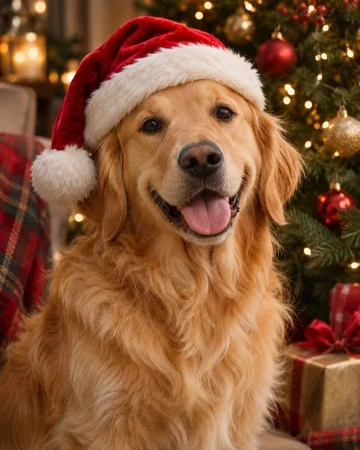
Look at the result before you download or share it. The example below is an illustration, not a result from your photos.
Hold each pet up against its original photo: markings, eye color, ears and nose. Count legs and paws too. In two-pet mode, make sure neither animal has borrowed the other’s features.
What does a pet portrait cost?
Each portrait is an image: 5 credits (1K) or 10 credits (2K), whether it shows one pet or two. Credits come from one-time packs.
If something looks off
- The photo is too soft. Use a sharper, brighter picture where your pet fills more of the frame. Extra words will not fix blur.
- My pet does not look right. Check the angle and whether anything hides the face or markings. With two pets, make sure each photo shows only one animal.
- A detail is off. Compare the result with the originals at full size before sharing.
- What if the job does not finish? Check the photos and settings, then try again later. Credits are not used when a job cannot start, and a failed job returns its credits.
Next ideas
- Making a certificate for a child? Read Nice List Certificate: How to Make One From a Child’s Photo.
- Want a holiday avatar too? Read Christmas PFP Ideas: Six Holiday Looks and How to Make Them.