
Updated
Christmas Wallpaper Aesthetic, Made From Your Own Photo
The Christmas wallpaper aesthetic most people want is soft light, a bit of greenery and a calm palette, not a cluttered stock image. Here you build it from a photo you already like. The Add Christmas decor effect dresses up the scene in your picture, whether it shows a person, a pet, a product or just a room.
Start with a photo that has space to decorate
Bright, even light helps. Leave faces, paws, the edges of objects, windows and furniture visible. A tight close-up only leaves room for a few background lights, while a wider shot gives the AI space for a tree, garland or presents. No props or costumes required; just use a photo you have the right to edit.
Your aesthetic Christmas wallpaper in four steps
1. Upload any photo
Pick one JPG, PNG or WebP under 10 MB showing a person, pet, product, room or view. Leave some surroundings in frame for the decorations. No face needed.
2. Keep Add Christmas decor and pick a style
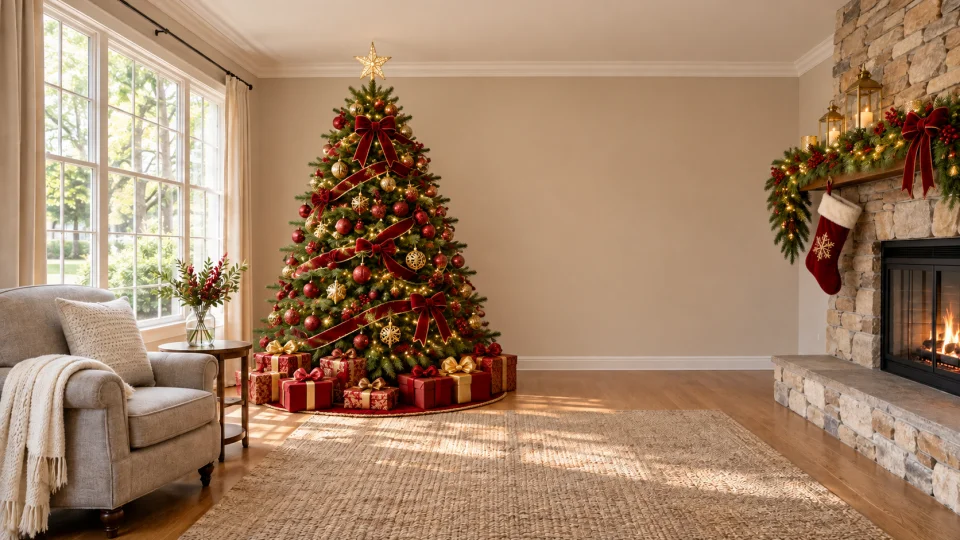
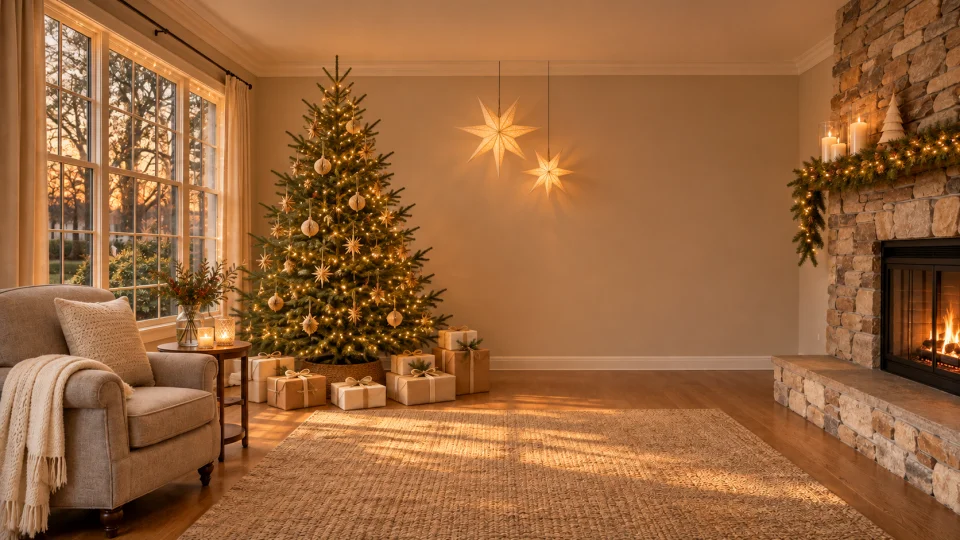
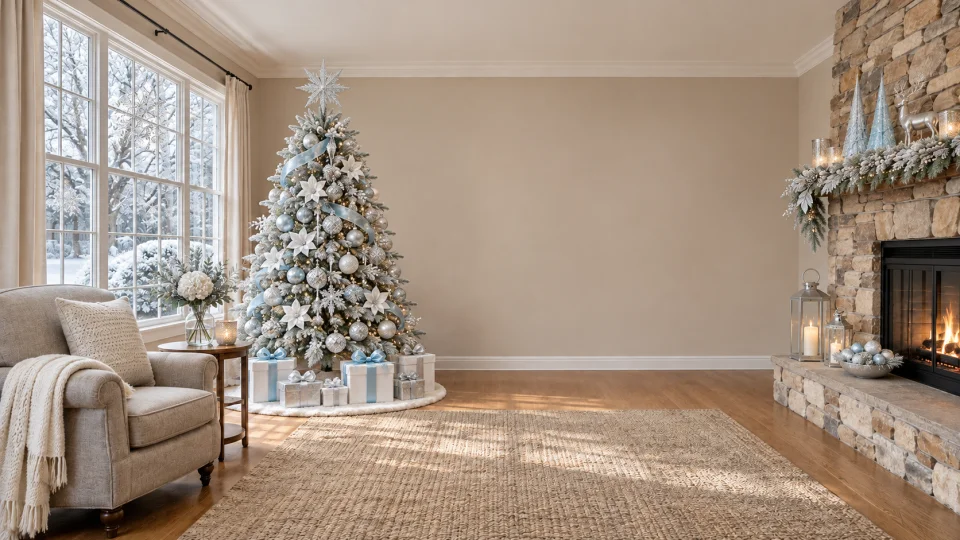
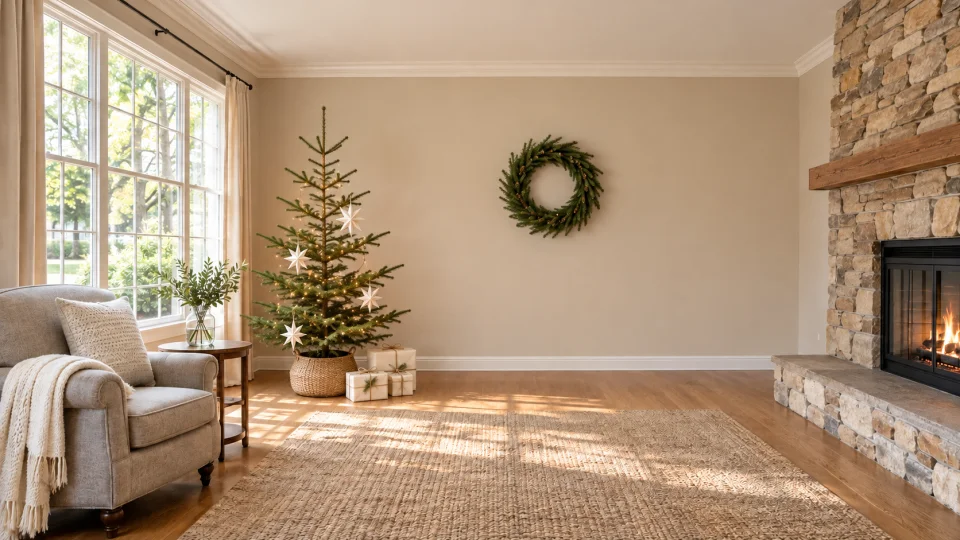
Add Christmas decor is preselected. Compare Classic Christmas, Warm lights, Snowy Christmas and Minimal Christmas using the room previews, which all start from the same photo.
3. Choose quality and screen shape
Leave the proportions as shot, or pick tall 9:16 for a phone, square 1:1, or wide 16:9 for a monitor. 1K is 5 credits; the default 2K is 10.
4. Add a note, create, download
Optionally say where decorations should go, for example “leave the top clear for the clock and keep faces visible”. Sign in, create, check the result and download it, then set it as wallpaper in your device settings. Failed jobs return their credits.
Four Christmas wallpaper aesthetics, one room
Classic Christmas is red, green and gold. Warm lights leans amber with cream accents for a cozy aesthetic. Snowy Christmas is white and silver, with snow only outdoors. Minimal Christmas keeps things sparse, with paper stars and pale wood. Tap a preview to load that style.
People and pets stay in their own photo
The decor effect is told to keep faces, clothes, poses and fur markings as they are and to add the holiday details around them, with no costume and no new location. The pairs below are illustrations made from a sample portrait and a dog photo; live results may differ.
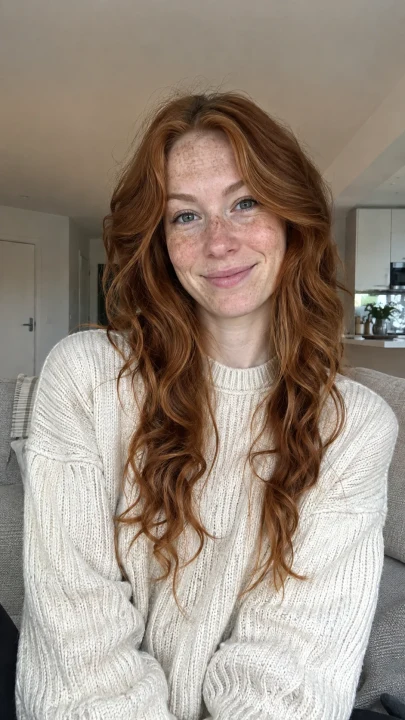
Before
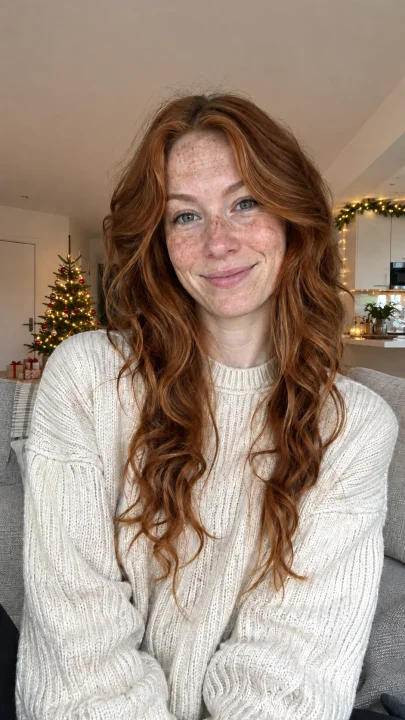
After
Decorate around a portrait
The person stays as they are and the room gets the decorations
Use this style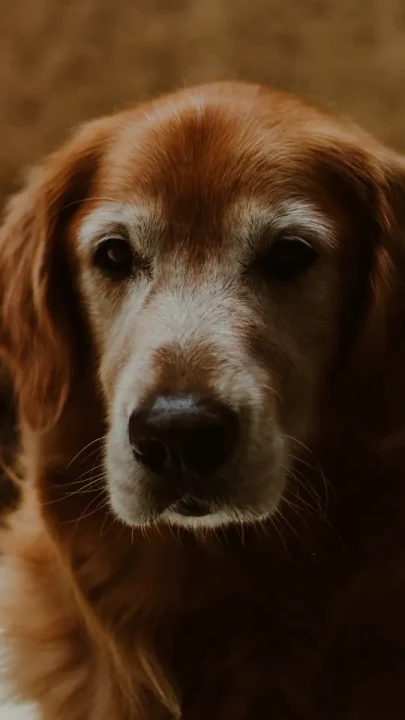
Before
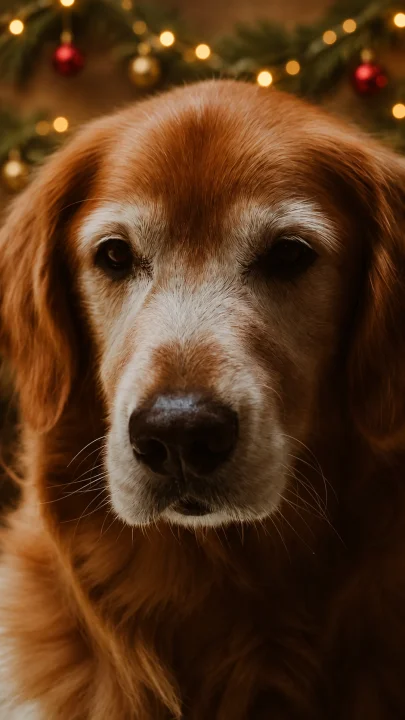
After
Festive touches for a pet photo
The dog keeps its face and coat while the background gets the decorations
Use this stylePhone, desktop or the original shape
The original shape is the default and asks the AI to leave your framing alone. Pick 9:16 for a phone lock screen, 1:1 for square or 16:9 for a desktop. These ratios describe a shape, not your screen’s exact pixels, so check the fit in your device settings after downloading.
For a lock screen, try “light decorations and an empty upper wall for the clock”. For a desktop, try “warm lights along the edges, quiet middle for icons”. When the shape changes, the AI may extend the background, so look at the edges and the subject before you apply it.
Check likeness, detail and cost
At full size, look at faces, hands, paws, fur markings, any product lettering, furniture and perspective. AI edits can change small things even when told not to. If something is off, start from a clearer or wider photo and describe where the decorations should go. A 1K image is 5 credits and the default 2K is 10. Failed jobs return their credits; each new successful image uses credits again.